


Valuable targets attract advanced threat actors. How to defend against quiet and persistent attacks

Following Apple’s WWDC ’24 conference, excitement is in the air, where the spotlight shone brightly on macOS Sequoia 15.
As tech enthusiasts and developers, we’re all eager to get our hands on the latest features and innovations.
However, upgrading your entire Mac to the beta version might not be the most practical approach, especially when you want to stabilize your primary environment.
Thankfully, Parallels Desktop offers the most convenient way to preview macOS Sequoia 15 in a virtual machine.
You can explore the latest macOS in a safe, isolated environment without altering your primary system.
Plus, we’re thrilled to offer a free 14-day trial of Parallels Desktop, with no commitment required.
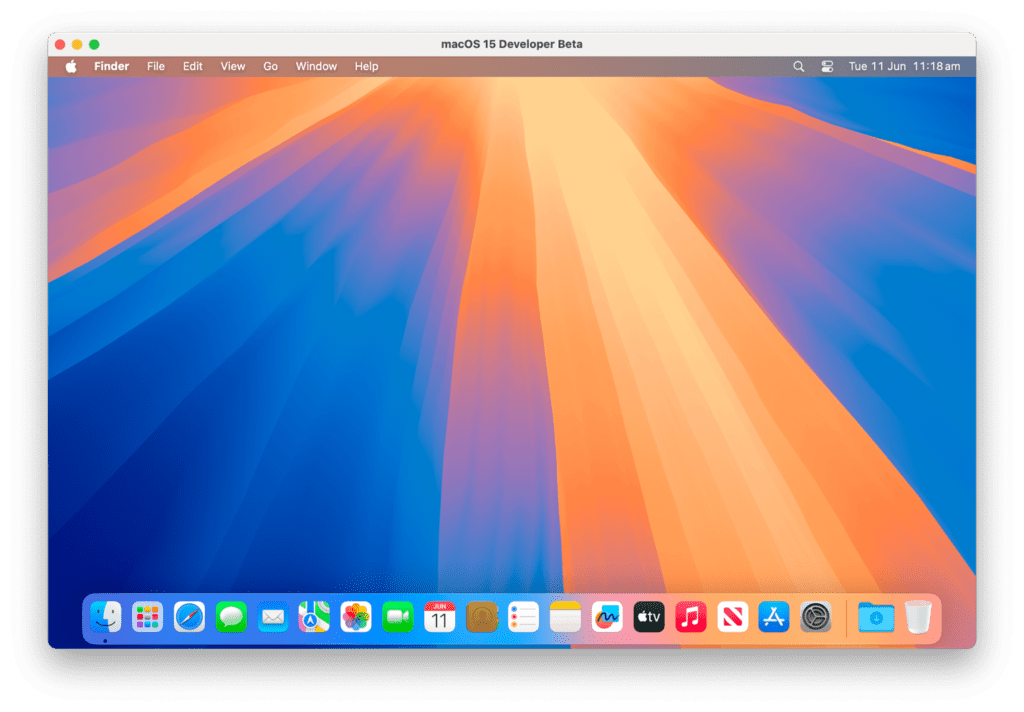
Here’s a step-by-step guide to help you get started with macOS Sequoia 15 on Parallels Desktop.
Install macOS Sequoia 15 in a Virtual Machine
Note: your Apple ID must be a member of the Apple Developer Program to proceed.
1. Download, unzip, and install the latest Xcode beta tools
– Head over to the Apple Developer Downloads page to get the latest Xcode beta tools.
2. Download the macOS 15 beta restore image
– Visit the Operating Systems Downloads page and download the macOS 15 beta restore image.
3. Create a new macOS VM in Parallels Desktop
– Open Parallels Desktop.
– Click File > New.
– Select Install Windows, Linux, or macOS from an image file, then click Continue.
– Choose the downloaded macOS 15 beta image file and click Continue.
– Set your desired name for the VM and click Create.
4. Wait for the installation to complete
– Parallels Desktop will guide you through the macOS installation process. This may take some time, so be patient as your new virtual machine is set up.
5. Complete the macOS setup
– Once the installation is complete, follow the on-screen instructions to set up a new user account in macOS Sequoia 15.
6. Install Parallels Tools
– On the menu bar, click on the virtual machine name > Install Parallels Tools.
– When the installation is complete, restart macOS 15. Parallels Tools bring clipboard synchronization and file sharing between your primary macOS and the virtual machine.
Important limitations to note
– Signing into an Apple ID in a virtual machine is not supported: you won’t be able to sign into your Apple ID within the VM.
– If you have an active VPN connection on the primary macOS, the virtual machine may lose network access. If this happens, shutdown the VM > open the VM configuration > Hardware > Network > Source: > switch to the Bridged network mode.
– Snapshots are not available yet for macOS virtual machines on Apple silicon.
Discover the latest innovations in macOS Sequoia 15
With Parallels Desktop, you can seamlessly explore macOS Sequoia 15 and stay ahead of the curve.
Our virtual machine software provides the flexibility and power you need to test new features without compromising your main operating system.
Don’t wait—download your free 14-day trial of Parallels Desktop today and dive into the future of macOS!
Happy exploring!
The Parallels Desktop Team
Try Parallels Desktop Free for 14 Days
Disclaimer: Features and steps mentioned are subject to updates and changes as software evolves.